
Primero Guidance on Federating to B2C
There are 2 types of processes we follow to set up single-sign on with partners. The first process is for partners’ who have a Google underlying identity provider. The second process is for non-Google providers, such as Entra ID (formerly Azure Active Directory).
This guidance outlines the process for partners who use Entra ID.
Step 1:
The partner IT focal point must review and complete instructions outlined here: Set up sign-in for a Microsoft Entra organization - Azure AD B2C | Microsoft Learn
The URL to be used is https://unicefpartners.b2clogin.com/unicefpartners.onmicrosoft.com/oauth2/authresp
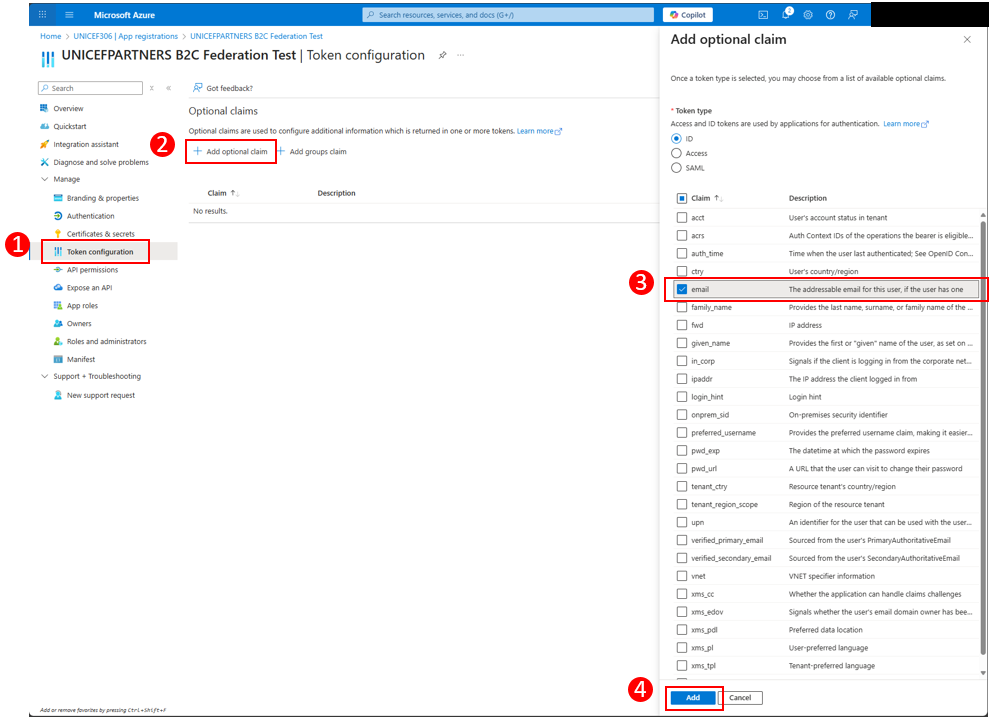
In order to add the email claim into your app registration please follow the below steps:
- Select “Token Configuration”
- Add optional claim
- Select “email”
- Select “Add”
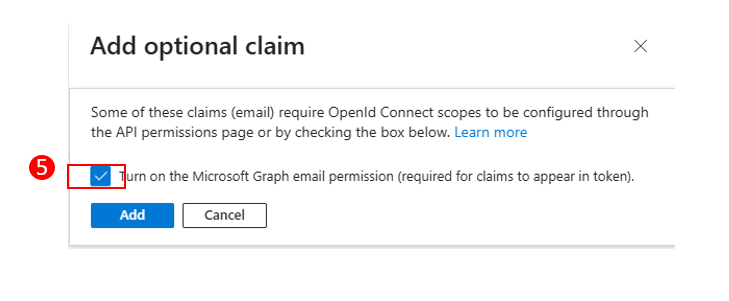
Once you select add, please select “Turn on the Microsoft Graph email permission…”
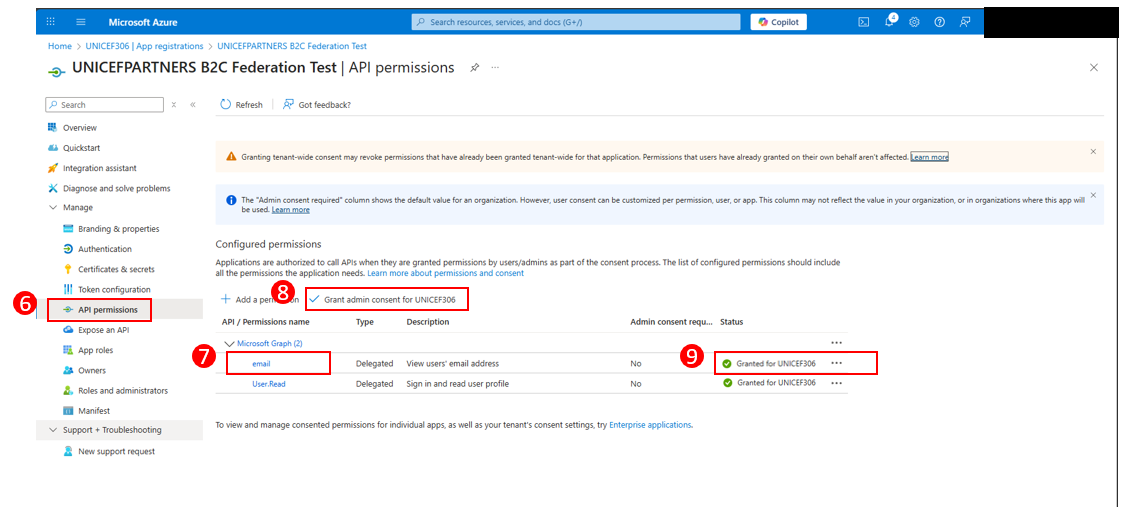
Once added then:
6) Go to “API permissions”
7) Select email
8) Grant admin consent for your organization
9) Verify email has been granted access
Step 2:
The partner must share credentials via OneDrive or through a safe data transfer method of their choosing with jpanchalingam@unicef.org only.
Step 3:
UNICEF ICTD will provide a test link. If any issues arise during testing then further debugging will be scheduled over a call with UNICEF ICTD (based in Valencia, Spain)